




Burning mp3 files on an Audio CD (JoyceCD)
1. Launch JoyceCD. Press the button "Audio CD" in the Toolbar.

2. Use the browser to select the required folder and pick out the mp3 files you need.
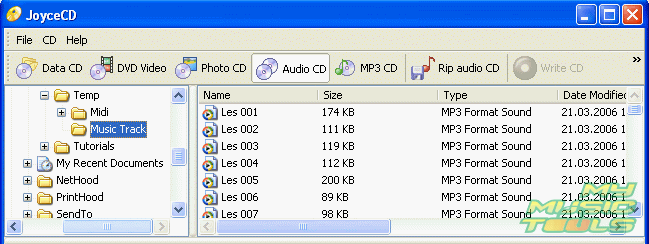
3. Select the required mp3 files. Use the buttons "Add" or "Add All" in the Toolbar to add the files to the burning project in the lower part of the program window.
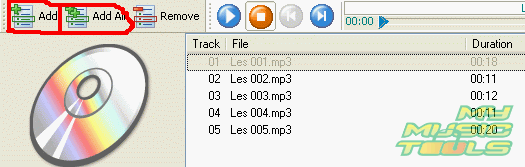
4. Before you start the burning process make sure that the CD you have inserted is blank. To start burning the files on your Audio CD press the button "Write CD".

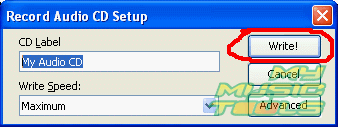
5. You will see the project's settings. Enter a name for the disk and choose the burning speed. Press the button "Write!"
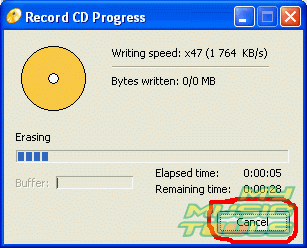
6. The project's burning dialog opens and the burning process begins. It is possible to cancel the task by pressing the button "Cancel", but you run the risk of damaging your CD in this case!!!


Search
Related
Ask our expert
- How to share screen videos online?
- How to sort duplicate music files by ID3 tags?
- How to get quick updates on movies by director?
- How to convert multiple MIDI files into an MP3?
- How to rotate videos?
- How to convert WMA to WAV?
- How to play MIDIs on an iPhone?
- How to split an audio file into equal parts?
- How to split m4b audiobooks into chapters for free?
- How to convert videos for You Tube?
