




What ID3 tag editor can edit WMA tags?
Introduction.
WMA is an audio format from Microsoft, it is very popular on computers running Windows operating system. One of the most popular players for Windows, Windows Media Player, can encode music to this format. WMA files are also available on the internet in great numbers. They may be DRM-protected, if sold through online media stores. Many portable hardware players support WMA format.
Like MP3, WMA files can contain tags, i.e. additional information about songs. This information may include: artist, title of the song, album, year of publishing, comments, genre etc. WMA tags are important for searching and organizing a media library.
If your WMA files have incomplete tags, or if the tags require some editing, you can change everything manually in Windows Media Player. But this method hardly deserves any attention, because Windows Media Player lacks many tagging and renaming capabilities of a true ID3 tag editor. Therefore you may want to get a proper WMA tagger and do the whole job in a few seconds.
You can edit WMA tags with mp3Tag Pro.
Step 1: Download and install the program.
Download mp3Tag Pro to a known location. Run setup and follow on-screen instructions to install the application.
Step 2: Start the program. Select WMA files to edit.
Launch mp3Tag Pro. Browse to the folder where your WMA files are stored. You can browse in the WMA tagger the same way you do in Windows Explorer: double click a folder to enter it, double click '..' or click the "Level up" button to exit the current folder, or use the folder tree on the left. Alternatively you can click the folder icon in the address field of mp3Tag Pro to invoke a usual "Browse" dialog.
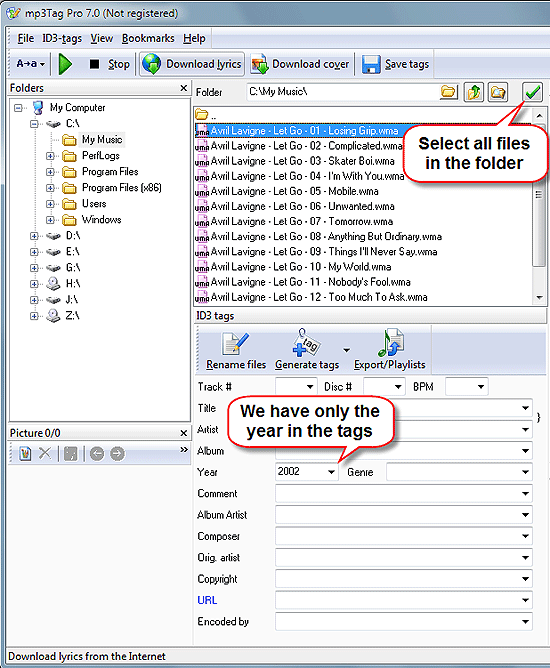
In our example filenames have sufficient information about songs, but WMA tags are almost empty (only the year field contains some value). Using the WMA tag editor we can extract information from filenames to tags.
Let's see how this can be done.
Select all files in the folder by clicking the "Select all" button, or press "Ctrl" + "A" on your keyboard.
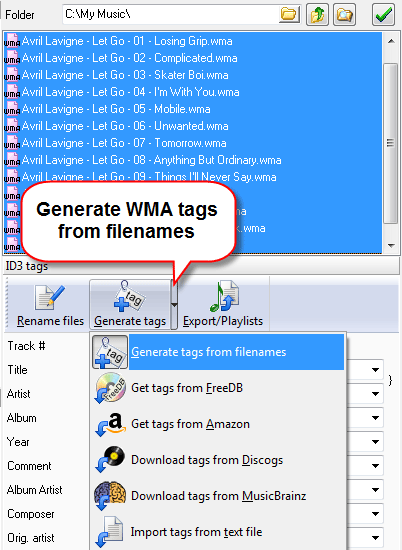
Click the "Generate tags" button.
Step 3: Generate WMA tags from filenames.
This will open a new window.
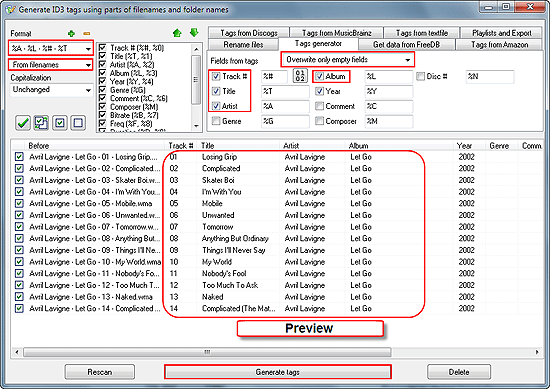
In the left upper corner, there is a "Format" area. Make sure that you extract tags from filenames, then enter an appropriate format. In our example, the format should be %A - %L - %# - %T, which means "Artist - Album - Track# - Title". The format tells the program how to read information from filenames.
On the right pane, check the fields that you want to overwrite and choose "Overwrite". Uncheck all other fields. Alternatively you can choose to overwrite only empty fields.
In the preview area, see how tags will look like with the current format and settings. If everything is correct, click "Generate tags" below to confirm writing WMA tags.
If something's wrong, change the format or make other necessary adjustments.
Step 4: Change a field of WMA tag for many files.
What we get after clicking "Generate tags" in the previous window is this:
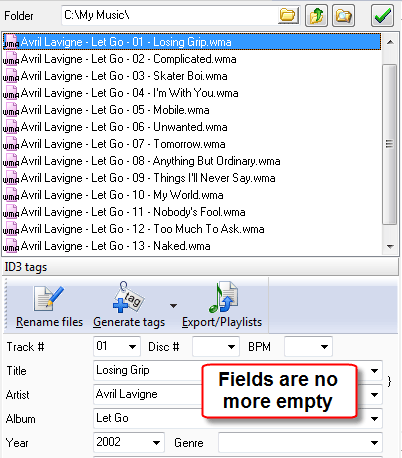
Thus information has been successfully extracted from filenames and written to WMA tags. Now our player will show correct information while playing the files.
But we can also edit some field, or add our own comment. To do that, select all files again ("Ctrl" + "A") and enter required information into the corresponding field:
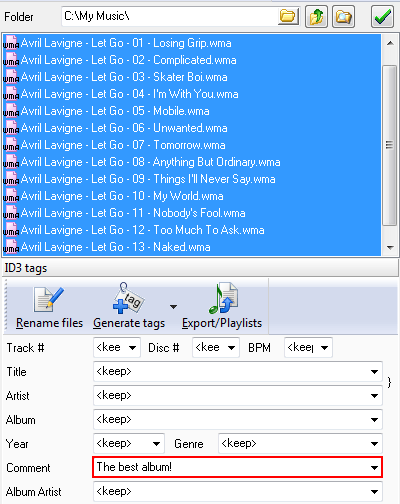
Click "Save" on the right pane to overwrite the edited fields in all selected files.
Using mp3Tag Pro, you can also download WMA tags for your files from FreeDB and/or Amazon tagging services. Just select the corresponding tab in the Rename/Generate window.


Search
Related
- How to sort duplicate music files by ID3 tags?
- How to add cover art to an mp3 file?
- How to rename a batch of audio files?
- How to find all songs on your PC
- How to import ID3 tags from CSV?
- How to find MP3 duplicates by sound?
- How to fix ID3 tags?
- How to export ID3 tags to MS Excel?
- How to edit FLAC tags?
- How to download FLAC lyrics for free?
- How to add track numbers to ID3 tags?
- Duplicate File Finder for Music
- How to extract MP3 tags from filenames?
- How to download MP3 lyrics for free?
- How to remove music duplicates?
- How do I find duplicates in my music collection?
- How to rename MP3 files using ID3 tags?
- What ID3 tag editor can edit WMA tags?
- How to edit AAC tags?
- How to download MP3 album art?
- How do I get ID3 tags from the Internet?
- How to download lyrics for songs?
- How do I tag MP3 files with ID3 data using filenames?
- How do I sort MP3 files? I want to organize my music collection.
- How to keep track of my borrowed music albums?
- How to make a catalog of my music collection using album barcodes?
- How to get the biography of an artist?
- How to manage my music collection on a Dune HD media player?
- How to organize my music collection?
- How do I organize my music collection?
- How do I remove duplicates on my computer?
- How to create a playlist?
- Media Catalog Studio 4.5 review
Ask our expert
- How to share screen videos online?
- How to sort duplicate music files by ID3 tags?
- How to get quick updates on movies by director?
- How to convert multiple MIDI files into an MP3?
- How to rotate videos?
- How to convert WMA to WAV?
- How to play MIDIs on an iPhone?
- How to split an audio file into equal parts?
- How to split m4b audiobooks into chapters for free?
- How to convert videos for You Tube?
